
1. An invitation will appear in your personal email inbox when your georgiaumc.net email address is created for you. This invitation email will come from Google Workspace. Invitations are sent out when appointments are reported to the IT office.
Open this invitation to get started.
For Existing North/South Georgia Clergy: we created your account already, and this invitation is likely expired. Please reach out to help@georgiaumc.net (if you have not already done so) to gain access to your account. This step is for new clergy only.
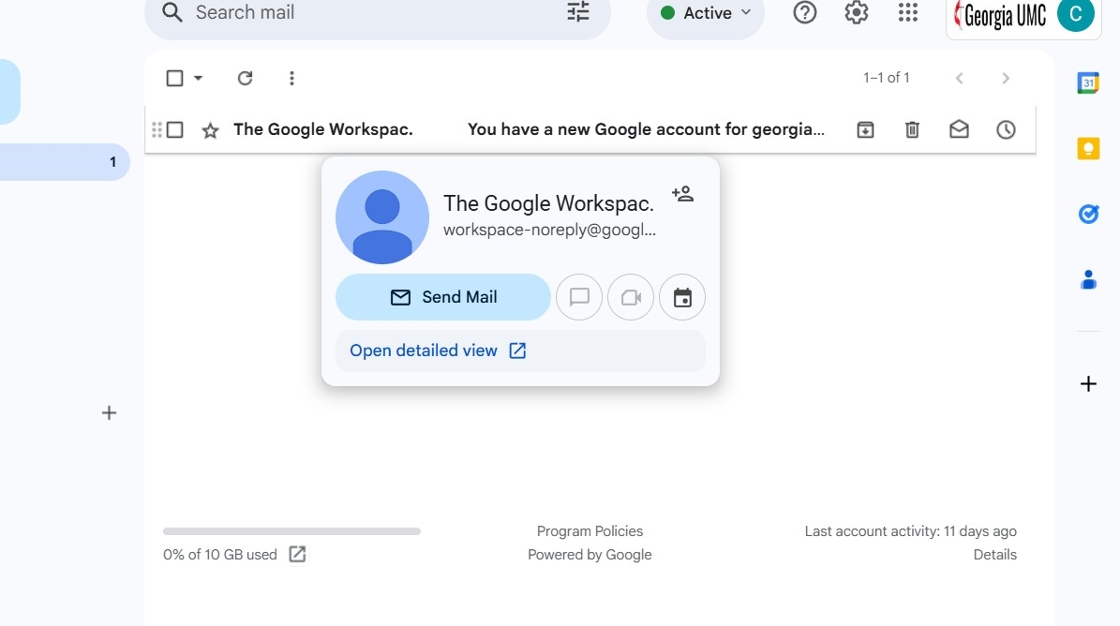
2. Your invitation should look like this. Click "sign-in" to begin setting up your account.

3. This message is what should appear next. The first sentence tells you what your email address/username will be.
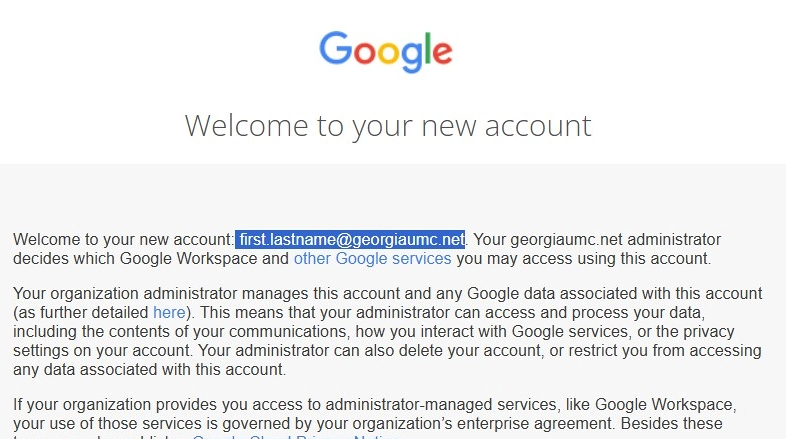
4. Once you are ready to proceed, click "I understand"
5. Create your password, and click "change password"

6. Two-factor authentication is required for all GeorgiaUMC.net accounts. This feature must be turned on or your account will be locked. If you are locked out of your account because you do not have this feature turned on, you must reach out to help@georgiaumc.net to have the account unlocked.
Click "Enroll" to begin two-factor set up.

7. It may ask you to enter your password several times through out this set up. Complete this step and click "next".

8. Click "Turn on 2-Step Verification"

9. Click the "Enter phone number" field and give a phone number that is good to contact you via text message.

10. Click "Next"

11. Confirm this number is correct and click "Save"

12. Click here.

13. Now that this is turned on, it is time to access your inbox for the first time.
Click this symbol in the top right corner.

14. A menu of options will appear. To access your inbox, click "Gmail"

15. Click "Get started" to go through a tour of your new account.

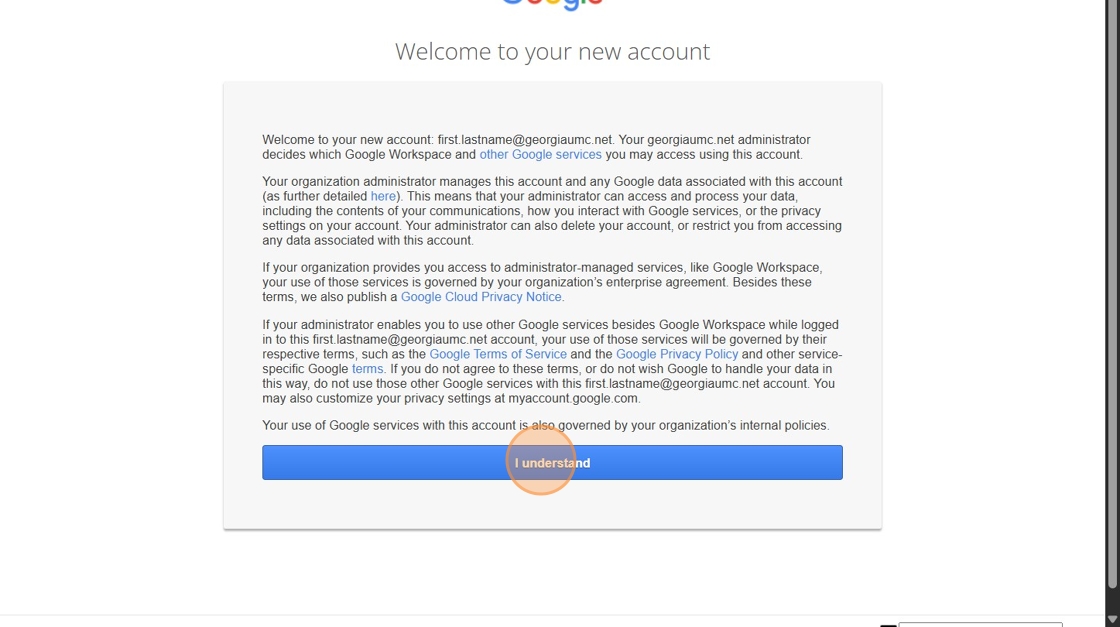
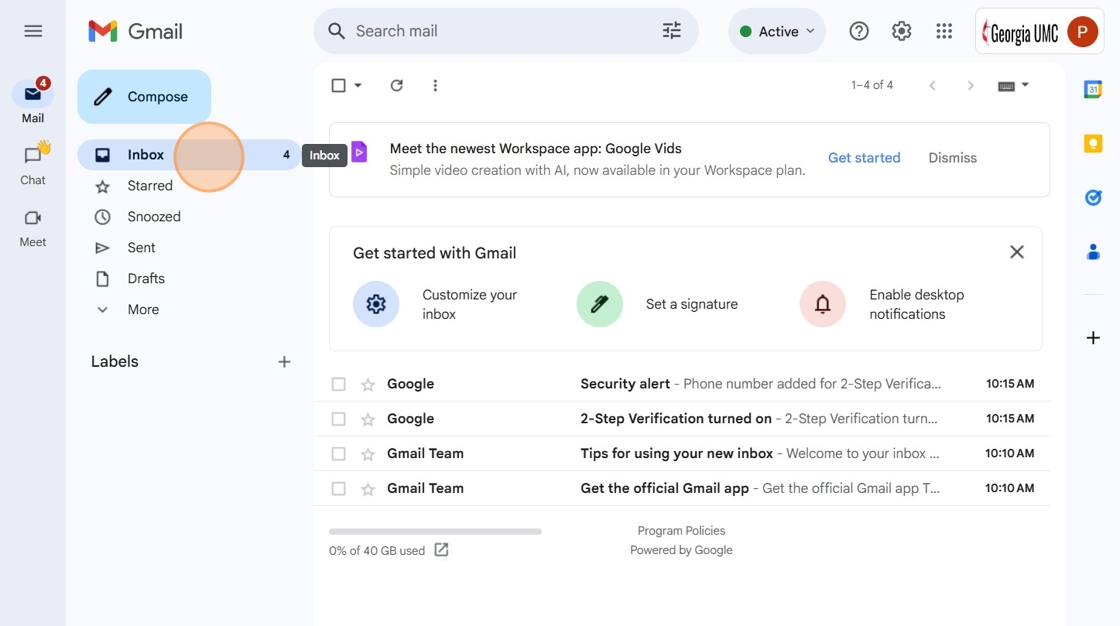
16. Once the tour is over, you may view your inbox!
17. If you choose to forward your email to a church or personal account, though this is not recommended, please remember you will need to update it every time you receive a new appointment or change addresses.
Email labeled as Junk Email will not forward. If you find you aren’t receiving an email message you will need to log into Gmail to check. You may maintain your own forwarding settings within your Gmail account.
https://support.google.com/mail/answer/10957?hl=en
This guide from Google will walk you through the steps you need to take to set up email forwarding.

Comments
0 comments
Article is closed for comments.