
1. Navigate to data.georgiaumc.org and log in with your georgiaumc.net email account. For assistance accessing that account, please contact help@georgiaumc.org.
2. Click here to open the "Choose Report" drop down menu.

3. Click "Compensation Financial Support CFSW (new)"

4. Choose your church from the dropdown menu at the top of the page. You will need to complete a worksheet for each church to which you are appointed. Be sure to only input the compensation information for the church you chose in this drop down menu.
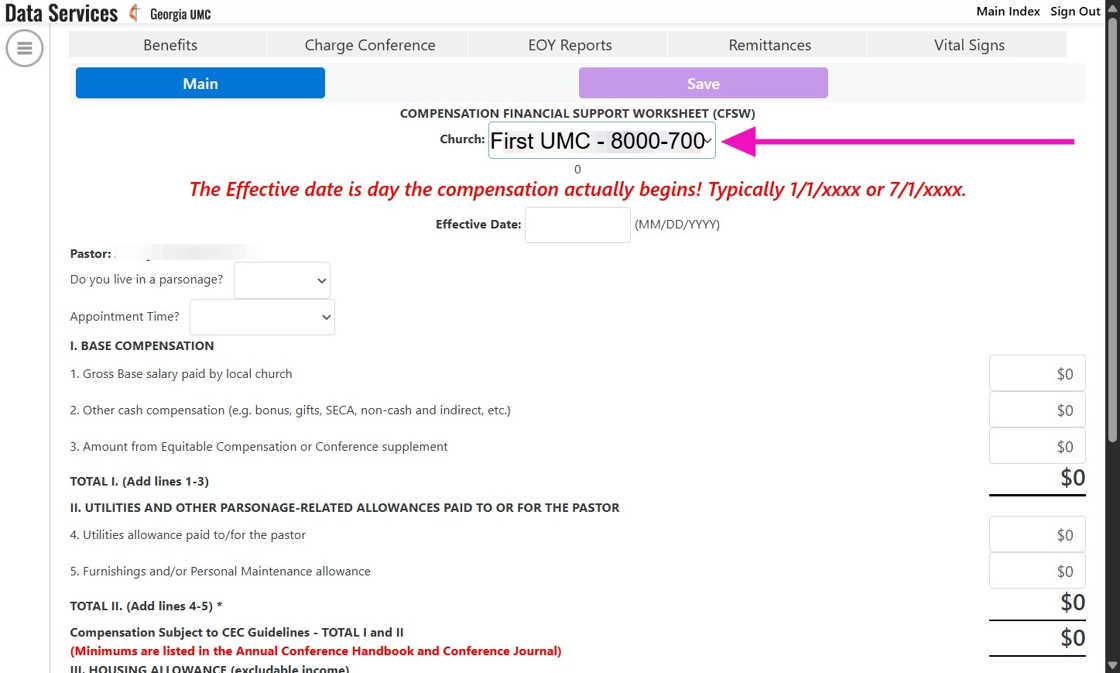
5. Then enter the effective date. This is the date the change in compensation actually begins. If there is no change in compensation and you are completing this for Charge Conference, you may enter 1/1 of that year as shown in the example picture in the following step.

6. Please report whether or not you live in a parsonage. If you serve more than one church AND live in a parsonage, please answer YES on all financial support worksheets. This particular question is not church specific.
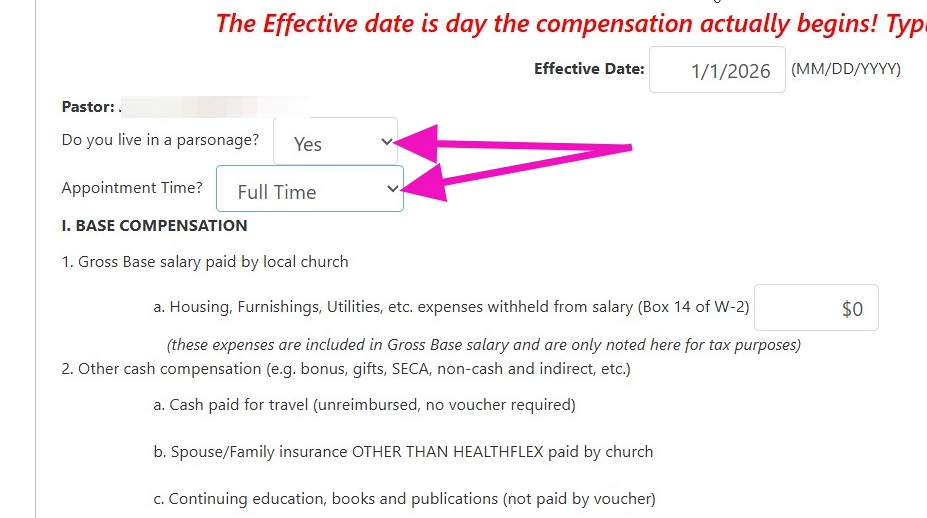
7. Click save once you are finished or need to come back to this later. If you need to come back to this later, skip to step 12. If you are ready to submit this to your authorized lay person for approval, continue to the next step.

8. Enter your name here. This will be your electronic signature for the worksheet.

9. Enter your authorized lay person's email of record here.

10. Enter your Lay Person's first and last name.
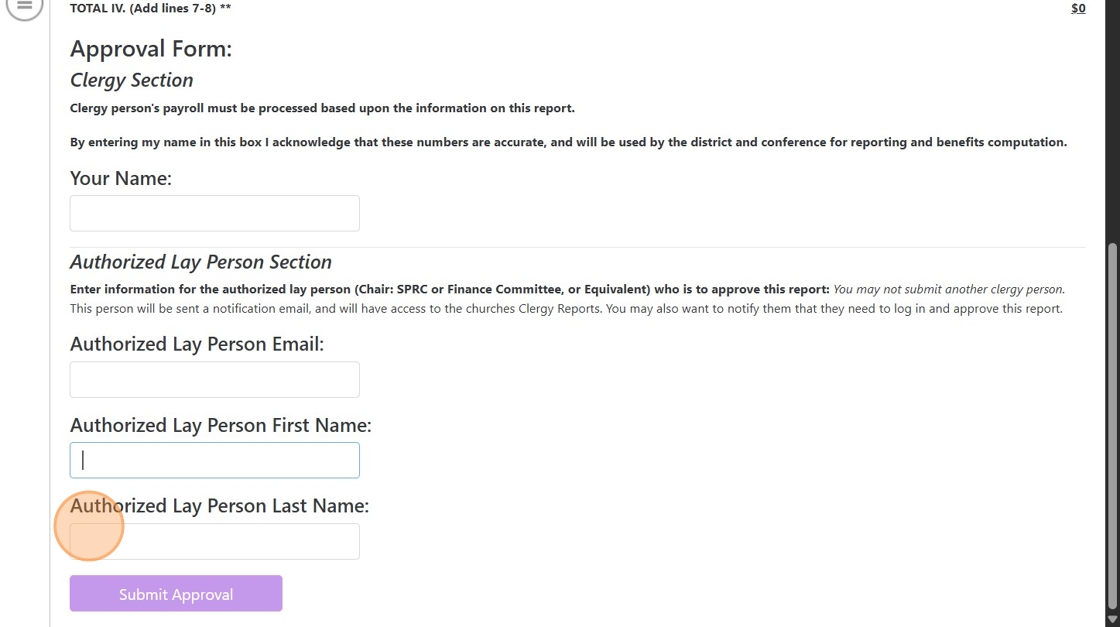
11. Then, click "Submit Approval" to send to your Lay Person. You are now done with this process for one of your appointments. The following steps refer to returning to a worksheet that was "saved" and not "submitted". If you completed this step, your worksheet is "submitted", so the following steps do not apply.

12. If you are wanting to return to a worksheet you have not yet submitted, click view next to the worksheet you wish to edit. You may find this on the Main Index.

13. Click "Edit" from the top of the page. Once you are done here, you may return to step 7.

Comments
0 comments
Please sign in to leave a comment.