
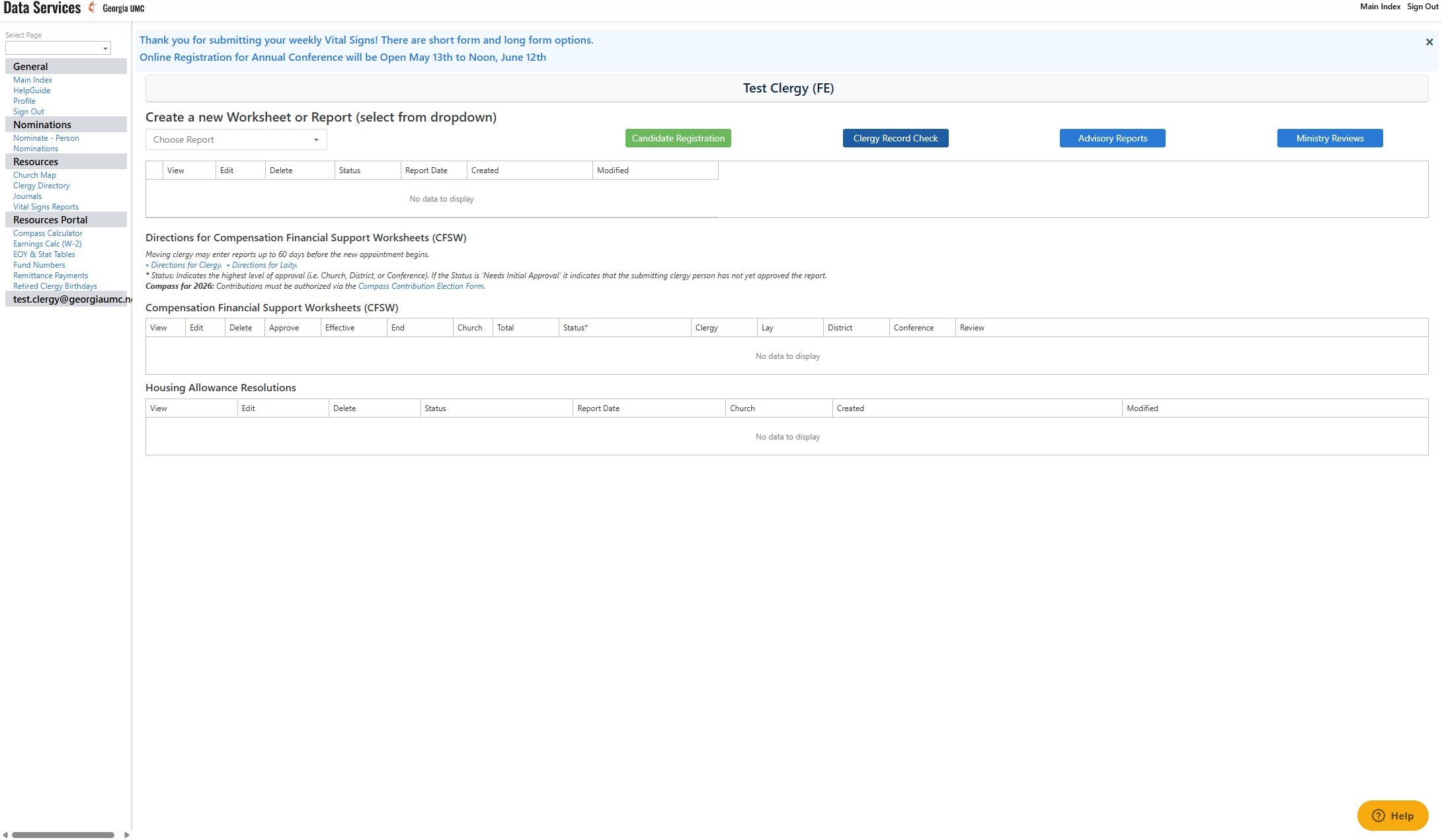
1. Navigate to https://data.georgiaumc.org/forms/index.aspx
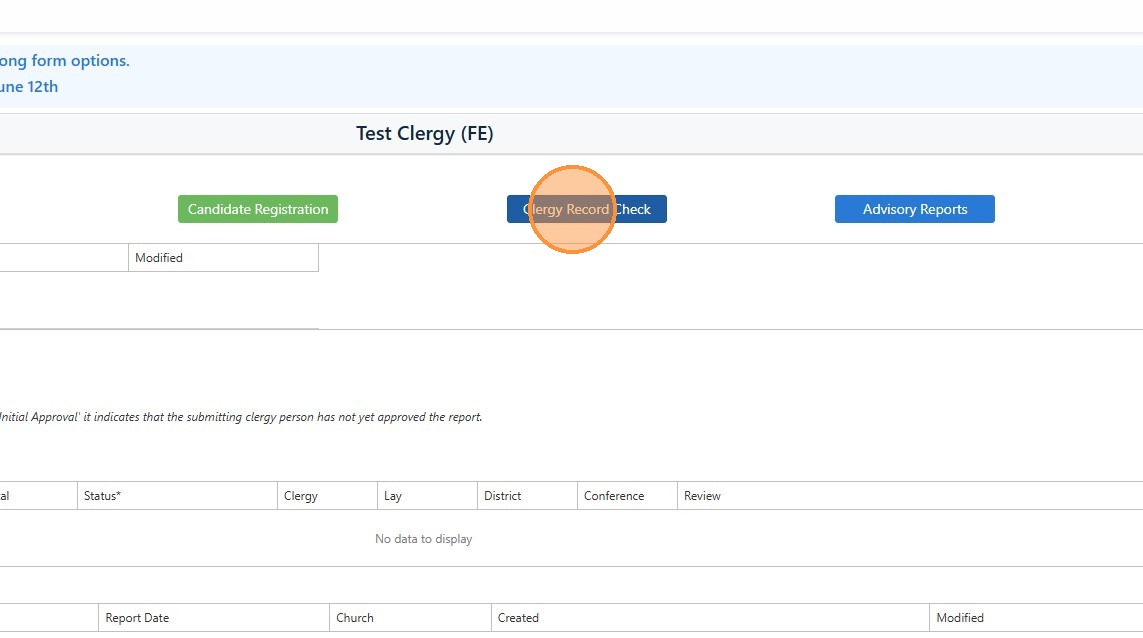
2. Click "Clergy Record Check" to look at your current record in Data Services.
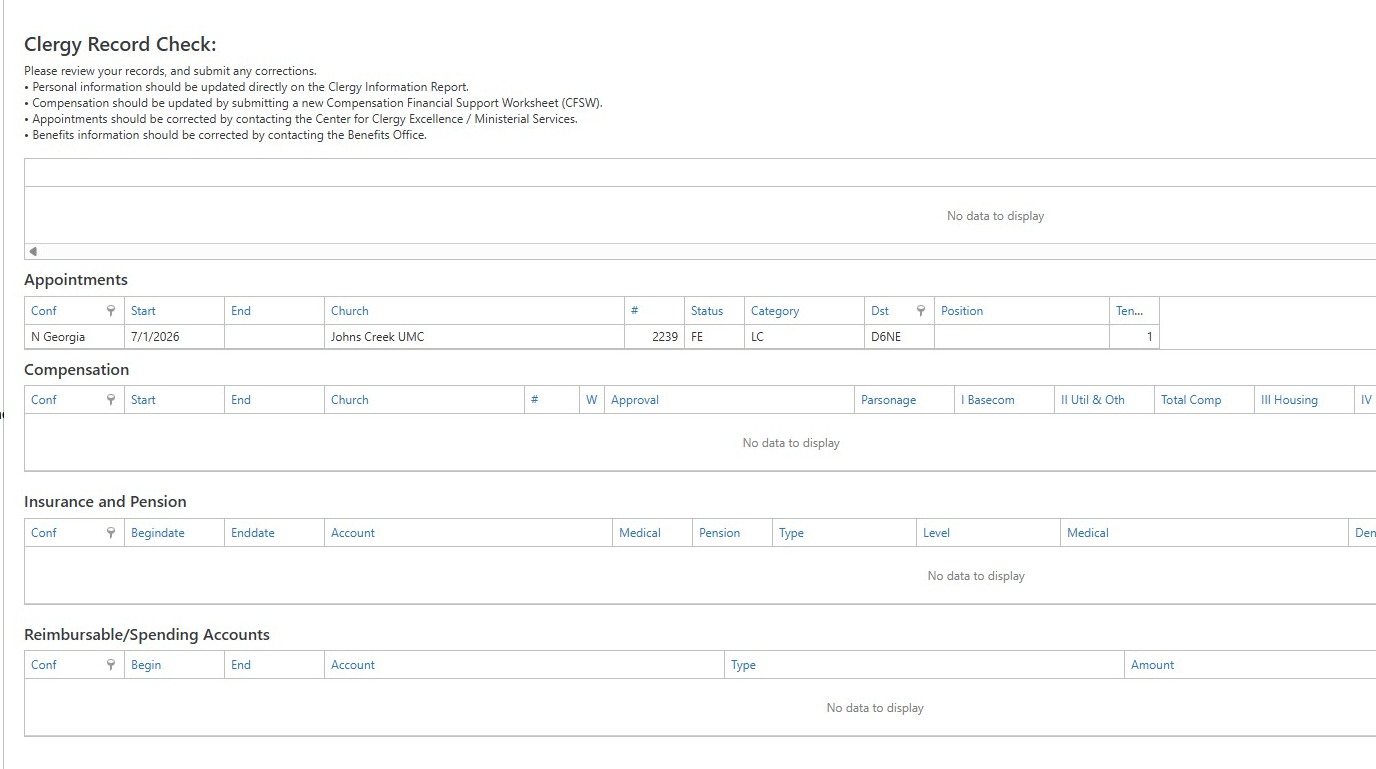
3. Check this area to make sure all your information is current and accurate. If it is not, please follow the bullet points at the top of this webpage to see the best way to correct this information. When in doubt, contact the Conference Help Desk, help@georgiaumc.org.
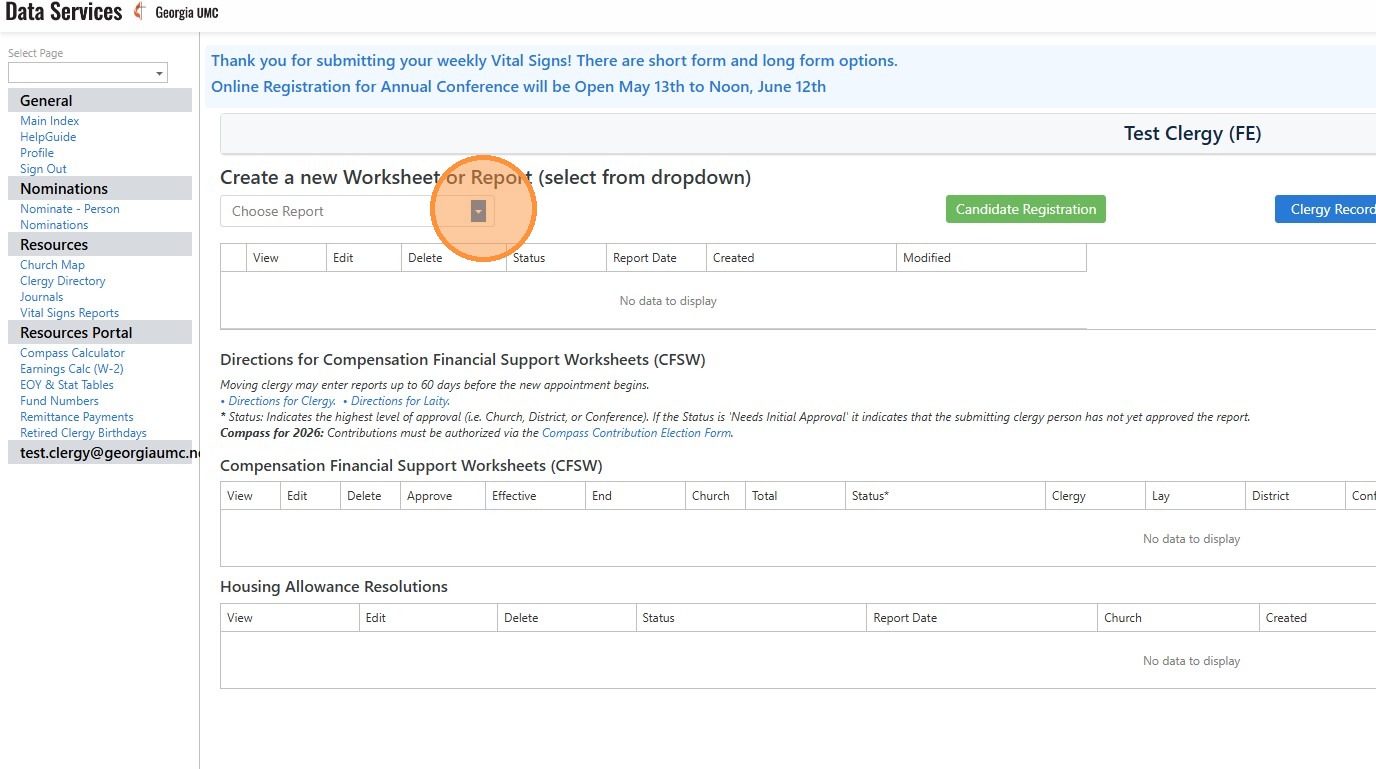
4. Click this image.
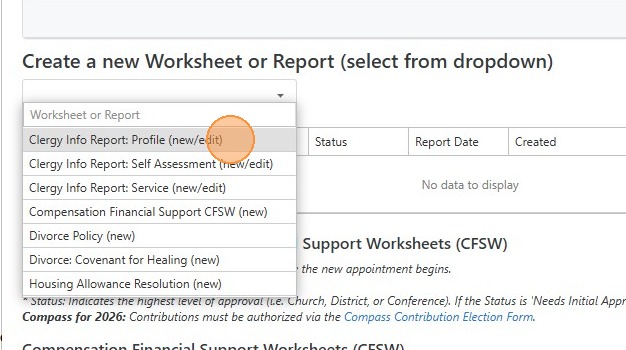
5. Click "Clergy Info Report: Profile (new/edit)"
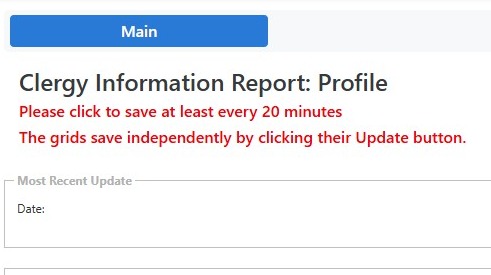
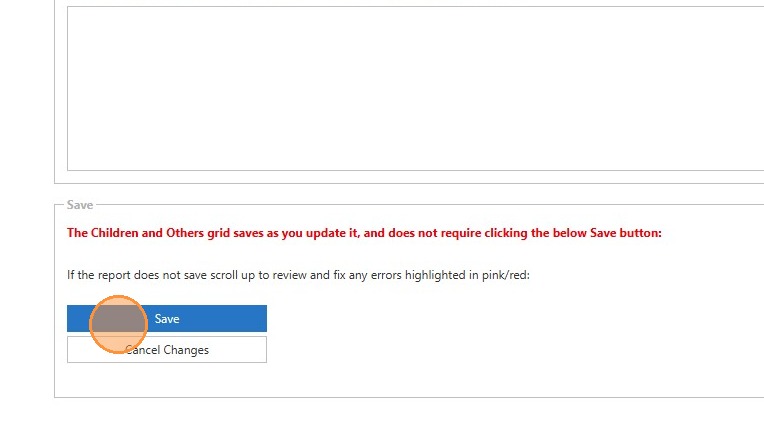
6. Please note that it is important to click the save button at the bottom of the page at least every 20 minutes to ensure no work is lost. Any information entered into a grid automatically updates when clicking the "Update" button after an edit.
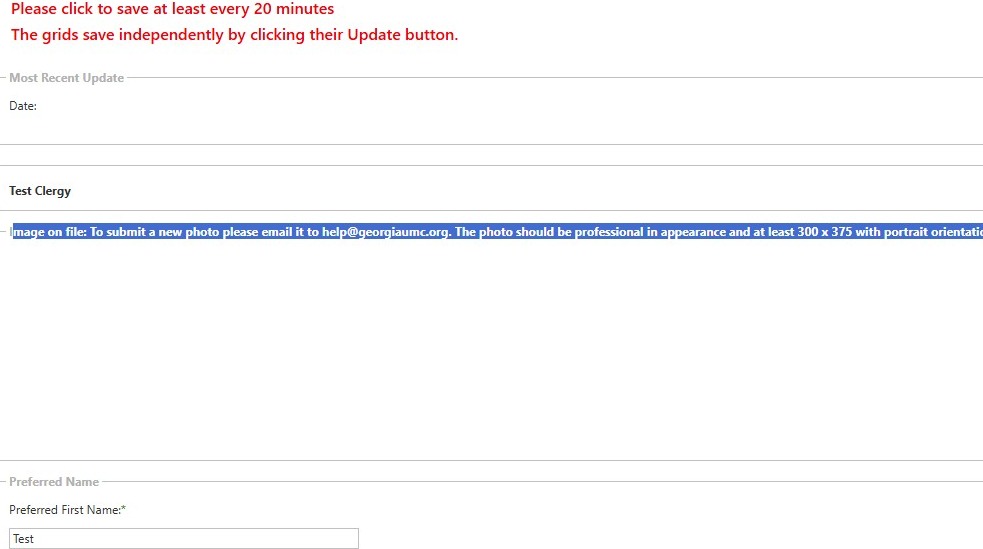
7. To submit your clergy photo for the Conference Website and Data Services, please email it to help@georgiaumc.org. The photo needs to be a professional headshot in portrait orientation, and it must be at least 300px by 375px. If it is larger than that, we will resize it.
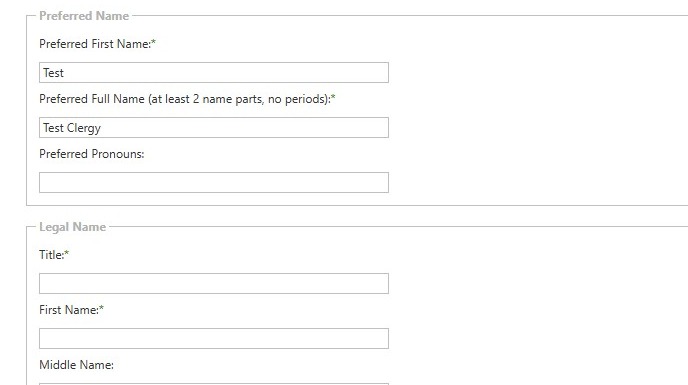
8. Fill out the personal information you need to ensure your record is up to date. Please be sure to fill out as much information as you can for a complete record.
9. Click "Save" when you are done!
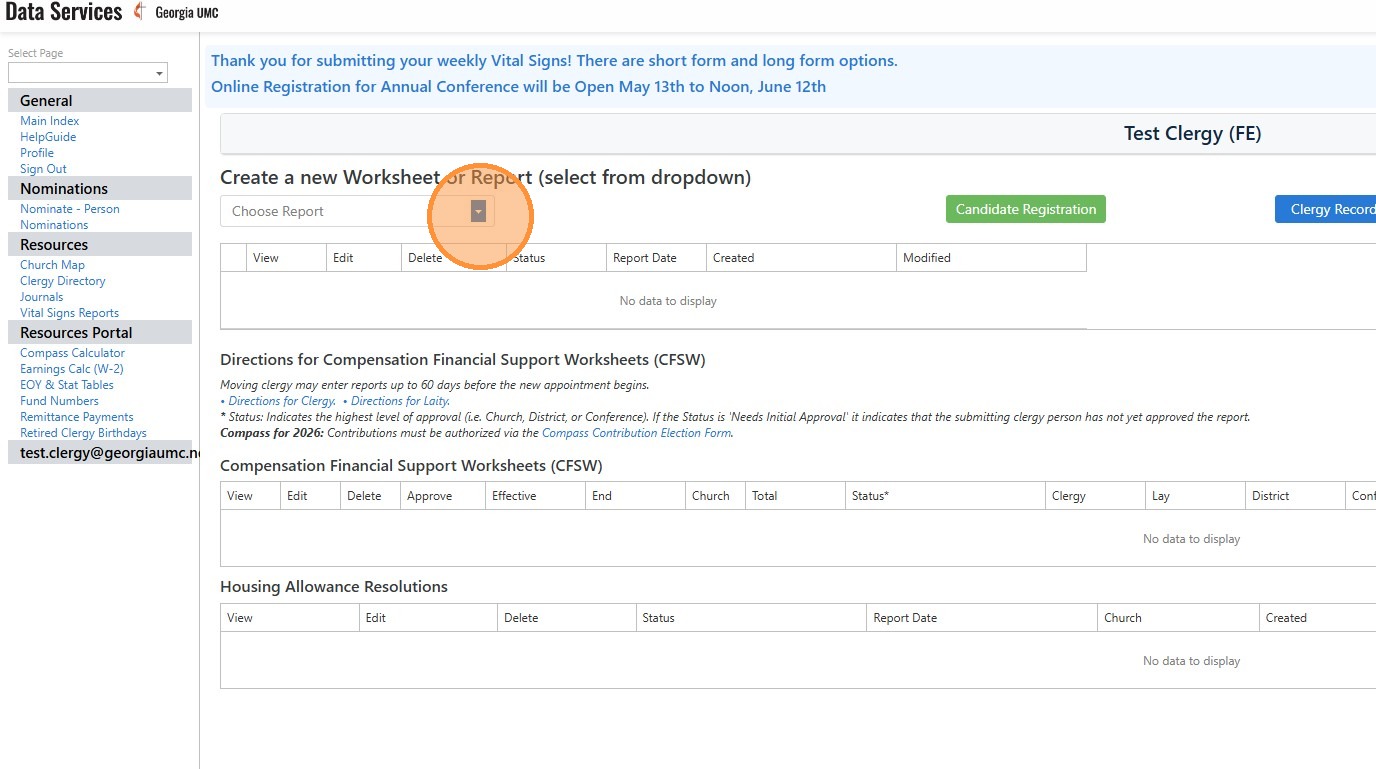
10. Click this image to go back to this report or to begin new ones such as your Compensation Financial Support Worksheet.
Comments
0 comments
Article is closed for comments.