
1. Navigate to data.georgiaumc.org
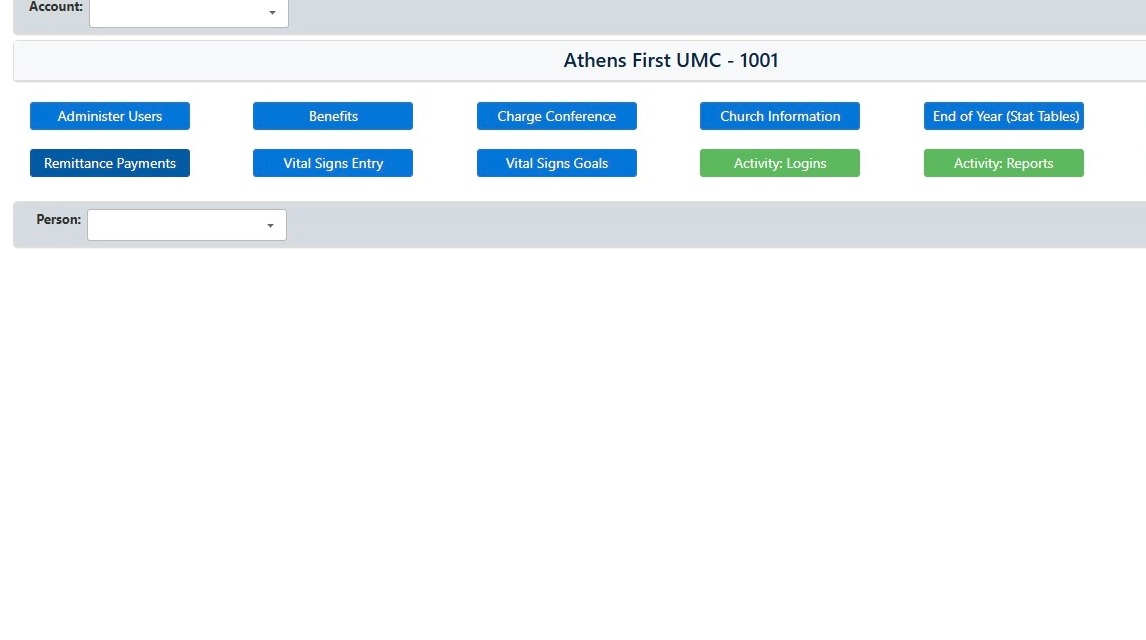
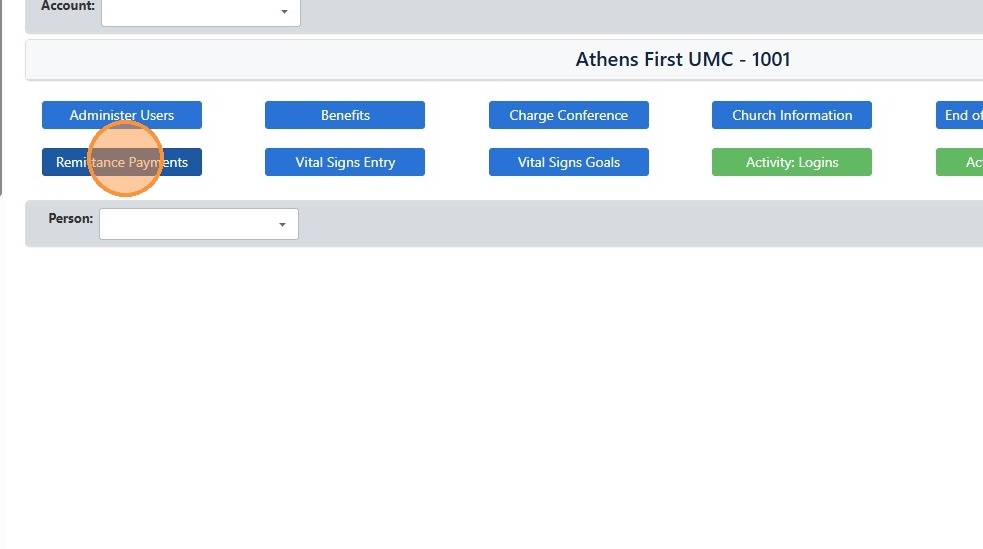
2. Click the "Remittance Payments" Button
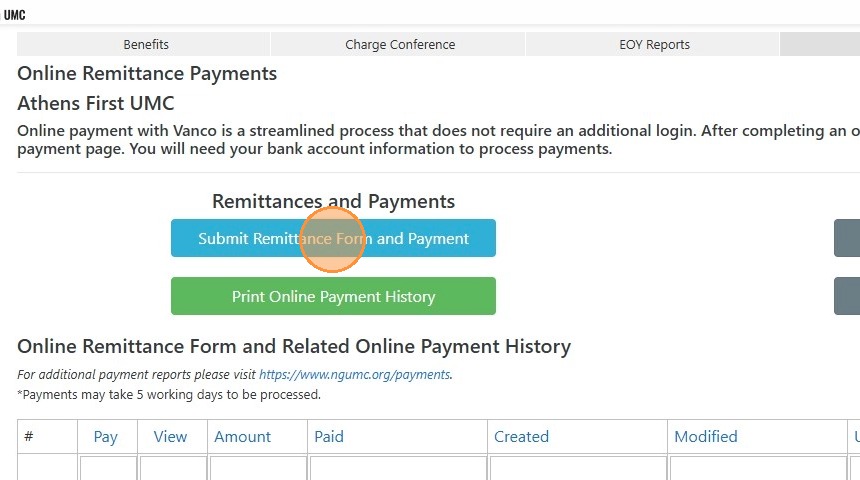
3. Click "Submit Remittance Form and Payment"
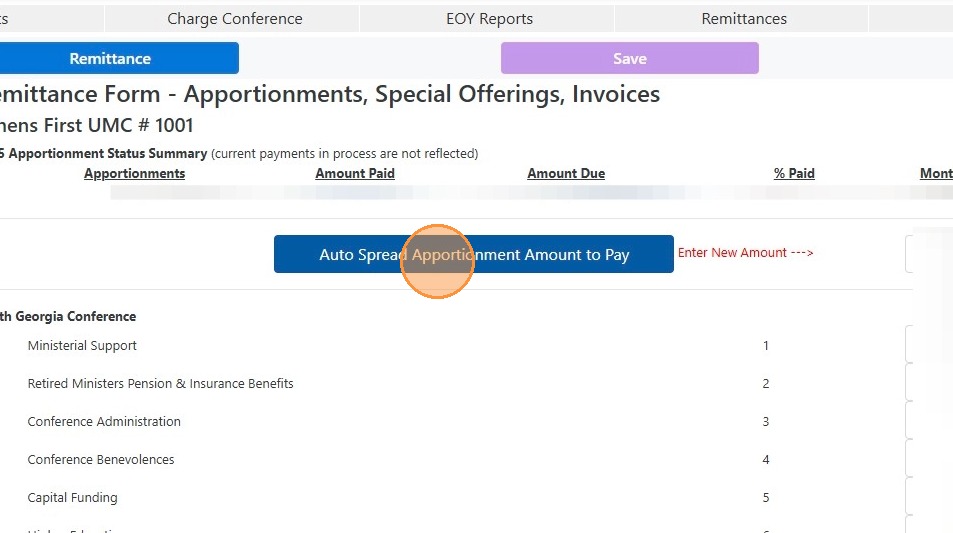
4. Click "Auto Spread Apportionment Amount to Pay"
5. If contributing to a Special Offering, choose one (or many) from the drop downs as pictured below. Enter the amount contributed to the Special Offering in the corresponding amount box to the right of the dropdown menu.
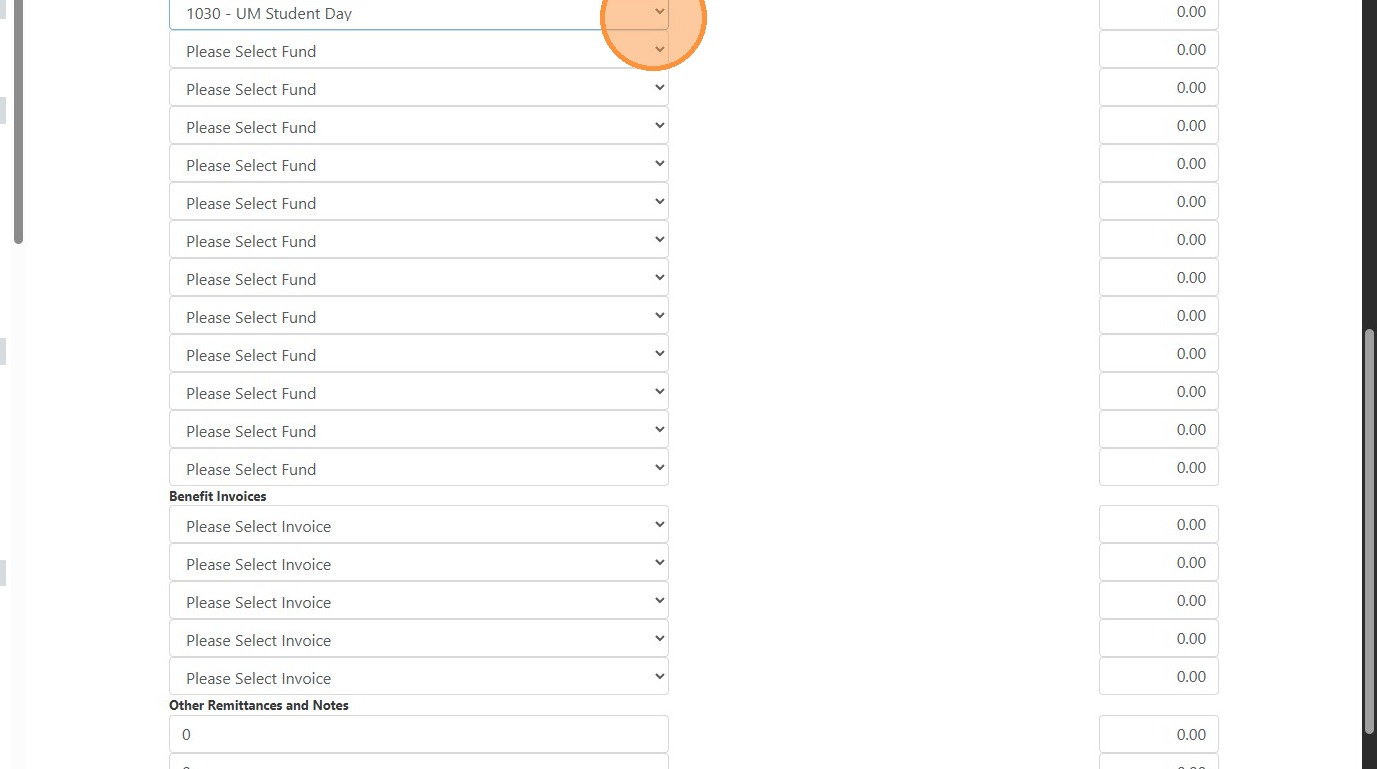
6. If paying a Benefits Invoice, choose one (or many) from the drop downs as pictured below. Enter the amount due/to-be-paid to the selected Benefits Invoice in the corresponding amount box to the right of the dropdown menu.
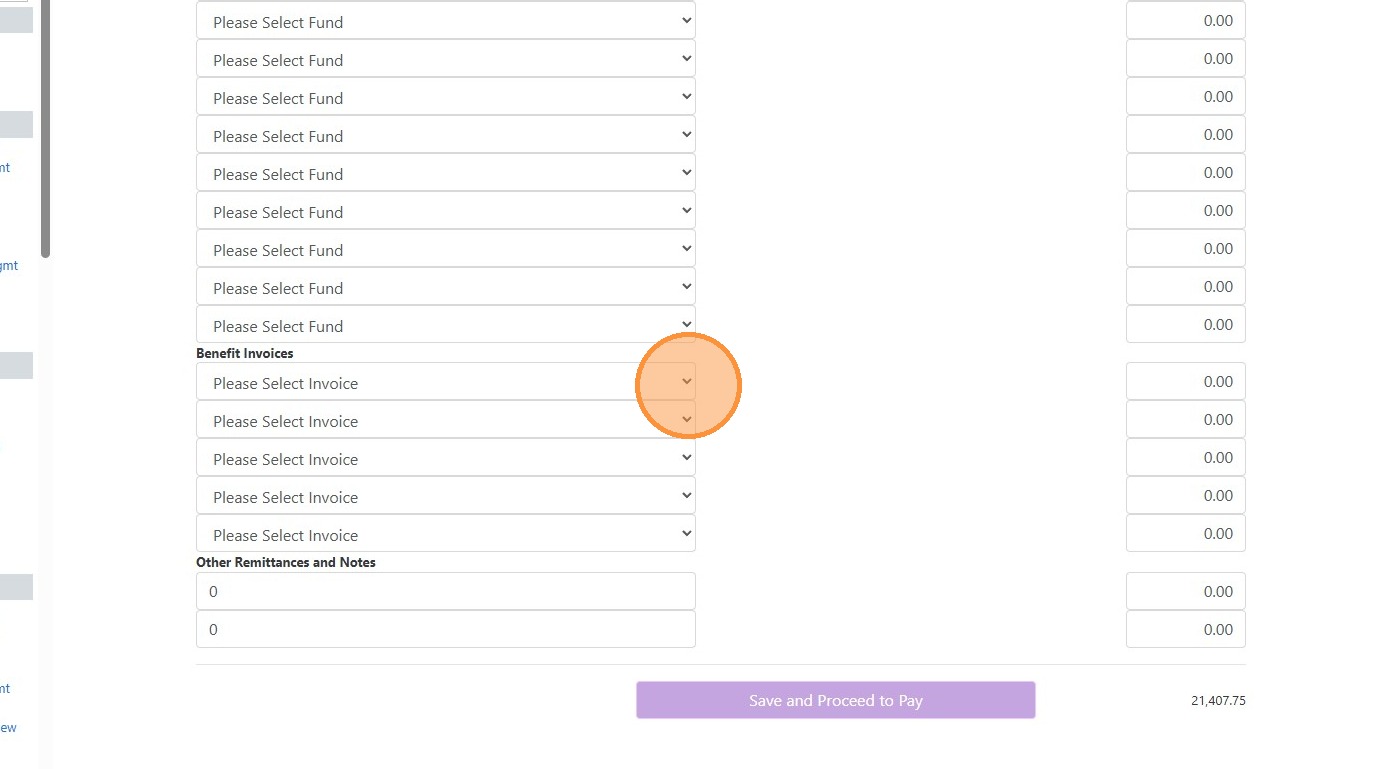
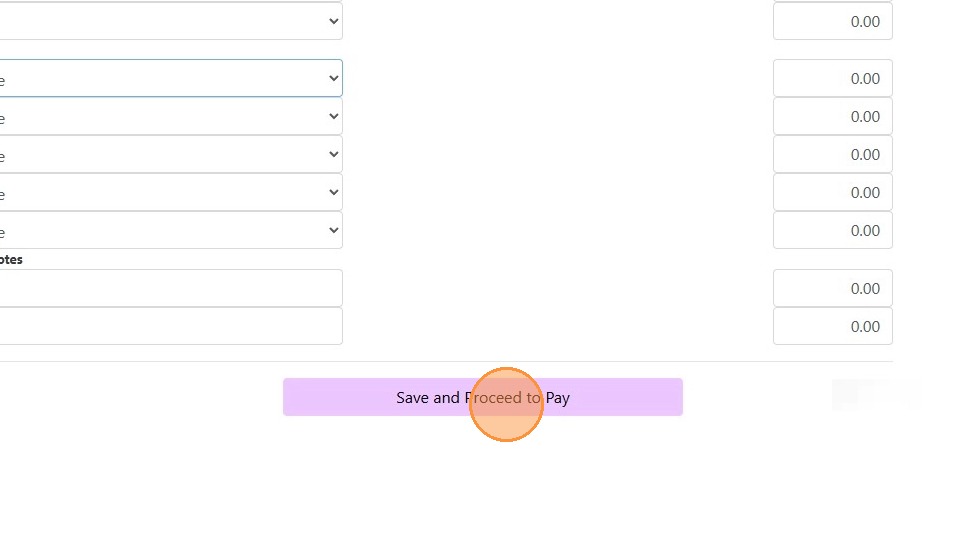
7. "Save and Proceed to Pay"
8. Enter the total remittance amount to be paid.
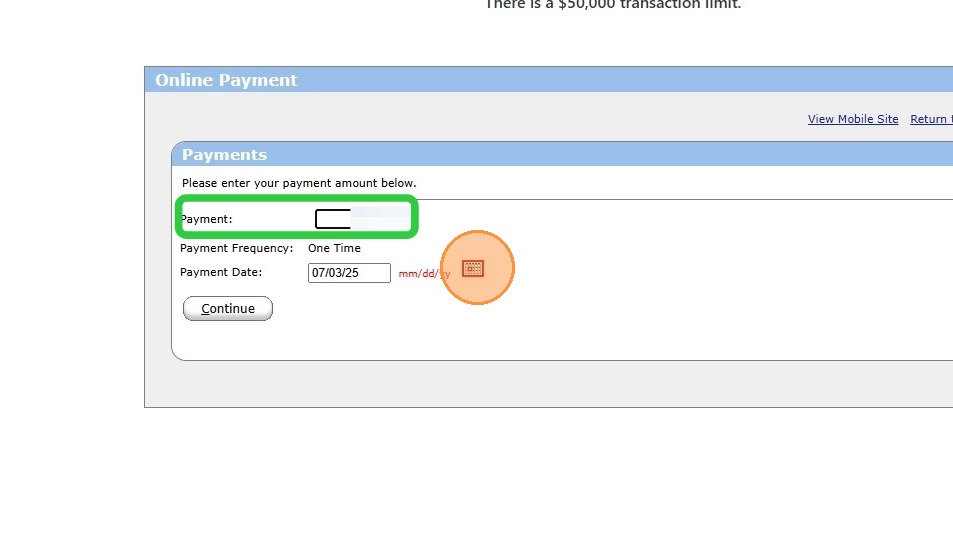
9. Select the date you would like to schedule the payment.
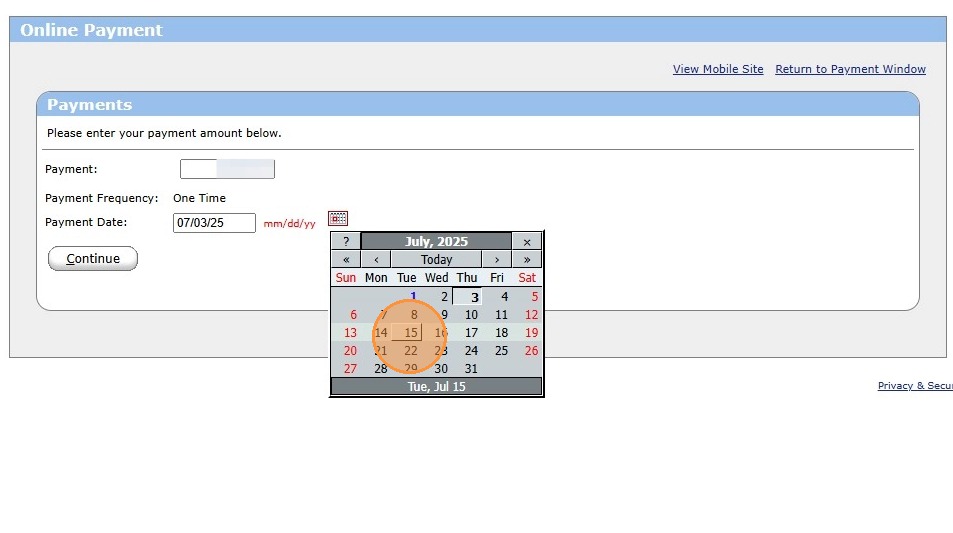
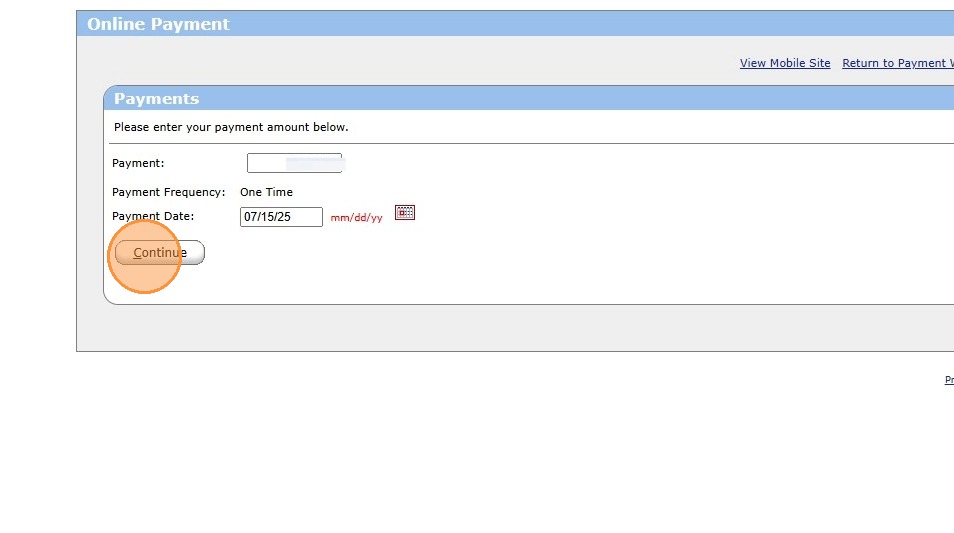
10. Click "Continue"
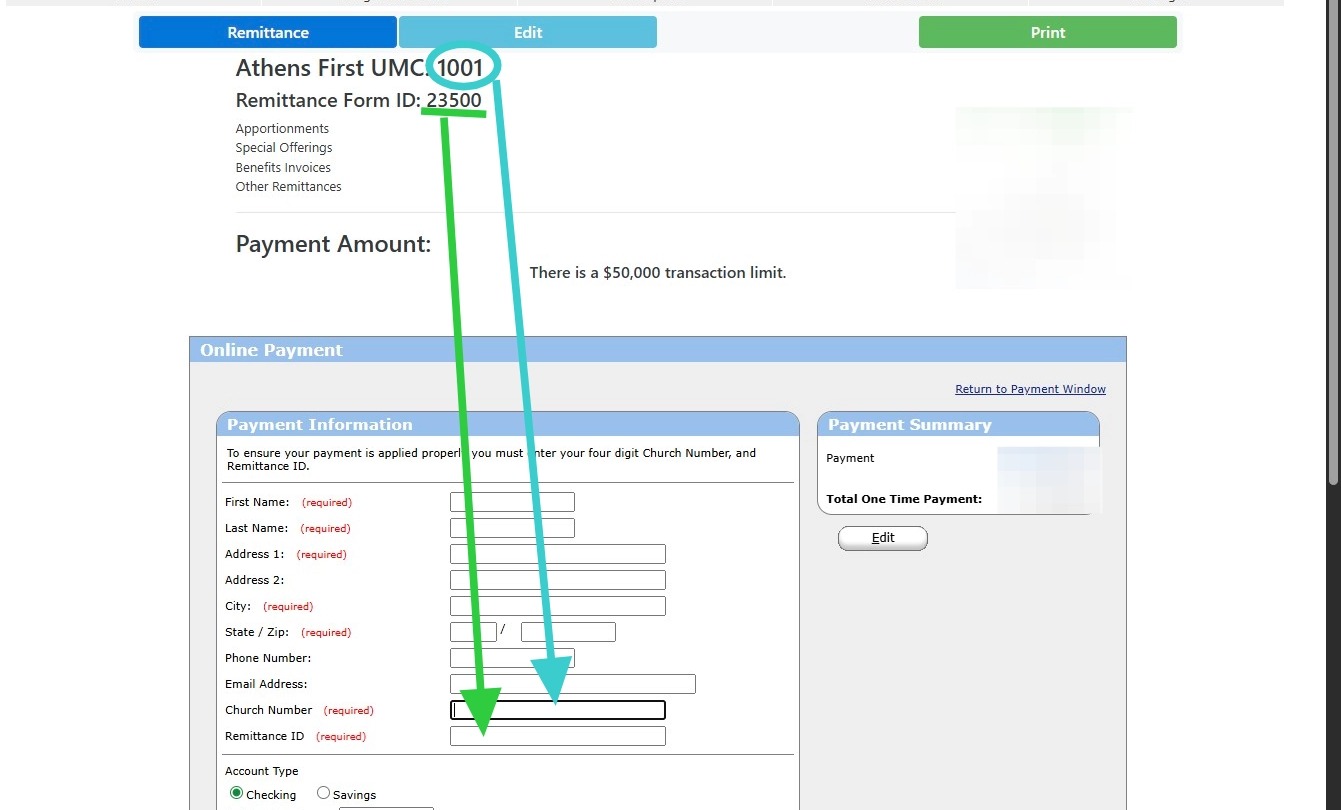
11. Fill out the required payment information.
Enter your Customer Number (light blue) and Remittance ID (green)...this is at the top of the screen next to the name of the account which is likely your Church's name. This number is not the same as the Remittance ID.
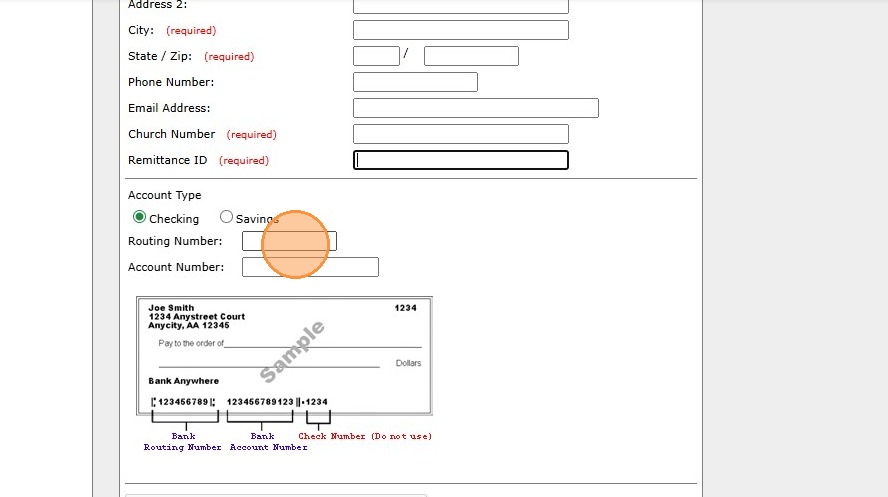
12. Enter your payment account information.
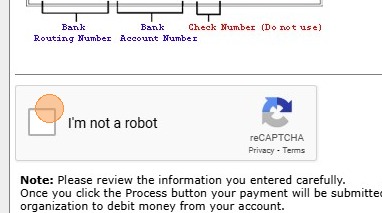
13. Click here to prove that you are a real person!
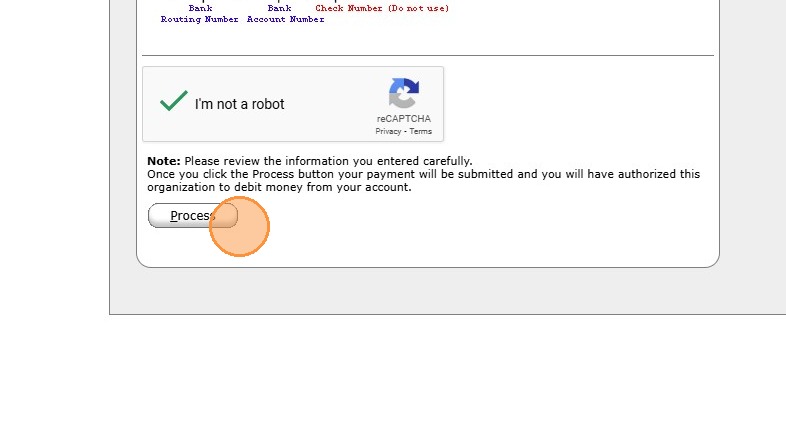
14. Click "Process" to complete/schedule the payment for this remittance.
Comments
0 comments
Article is closed for comments.