
1. Navigate to data.georgiaumc.org
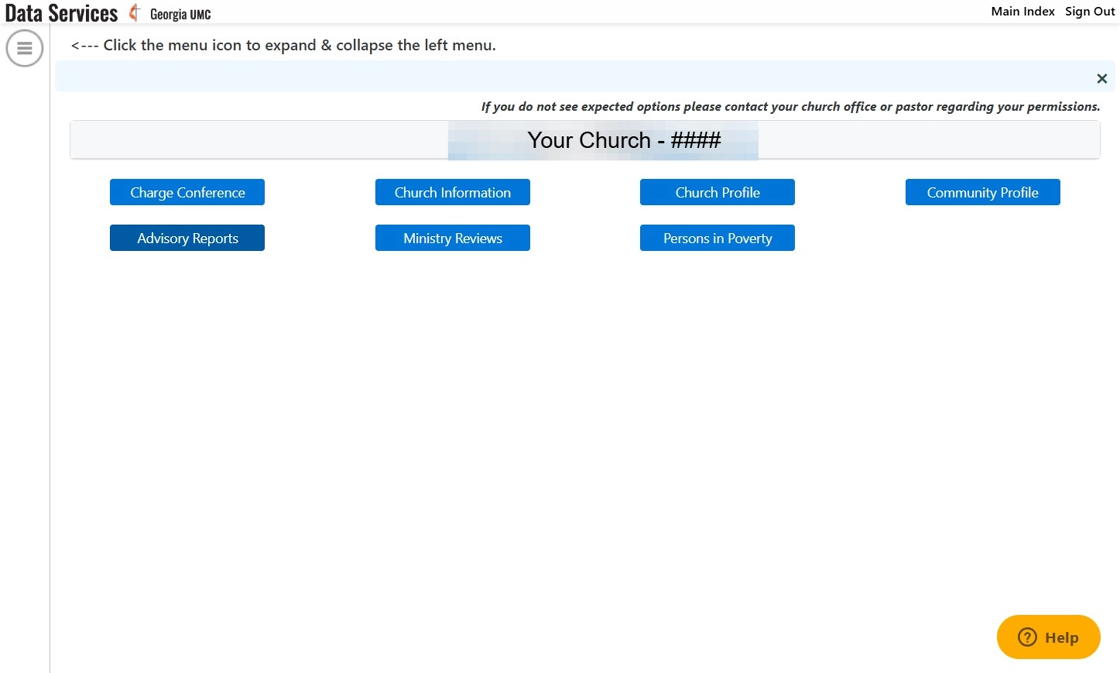
2. Click "Advisory Reports"
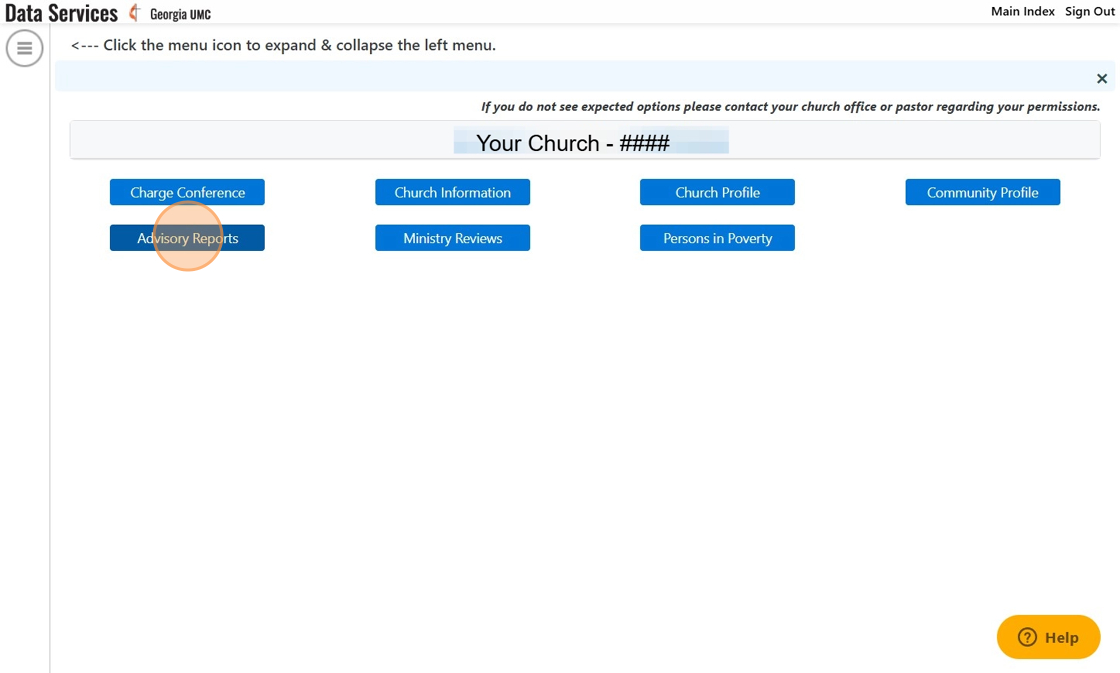
3. This is the Advisory Reports Index. Here you may see previous reports as well as create new ones. To create a new report, click the drop down menu as pictured in the example.

4. Choose your pastor from the drop down menu.
If you have more than one pastor, it is important to note that you MUST complete an Advisory Report for each pastor appointed at your church. Once you complete the steps following this one for one of your pastor, you may come back to this screen and select a different pastor for which an Advisory Report may be completed. If you do not see your current appointments listed, please contact help@georgiaumc.org for assistance.

5. Click "New Report"
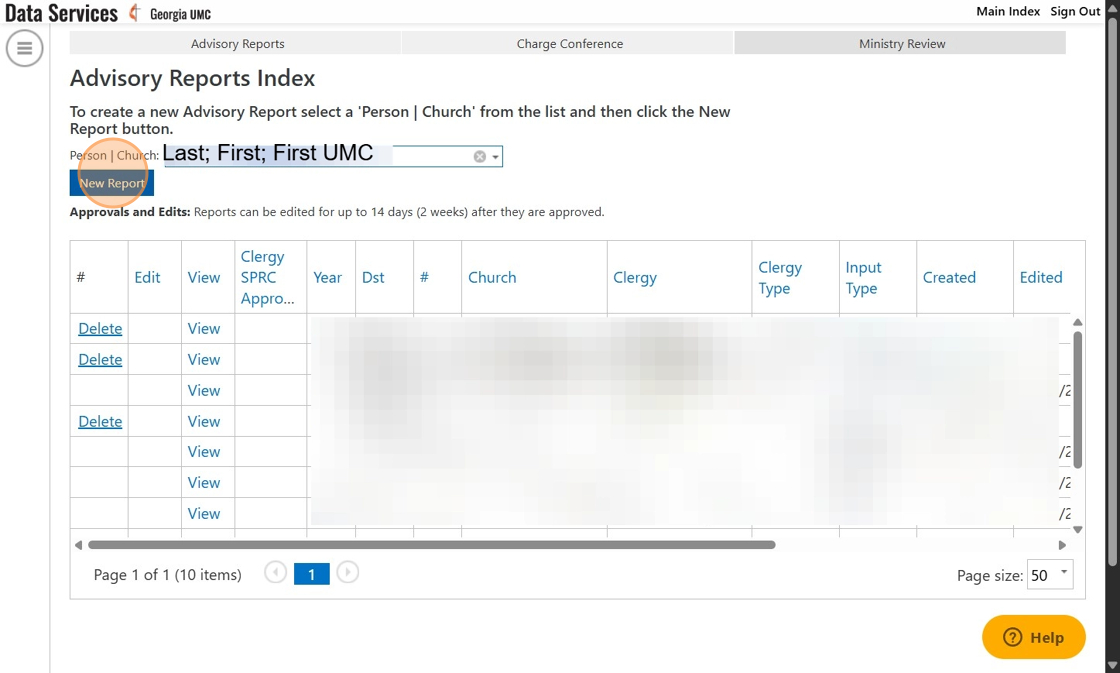
6. It is important to note that Data Services automatically logs users out of their accounts periodically when there has been no activity for 15+ minutes to keep our accounts and data secure. This may happen without warning. We understand that reports like these require time to complete and fully type out. Data Services does not register typing into these forms as activity.
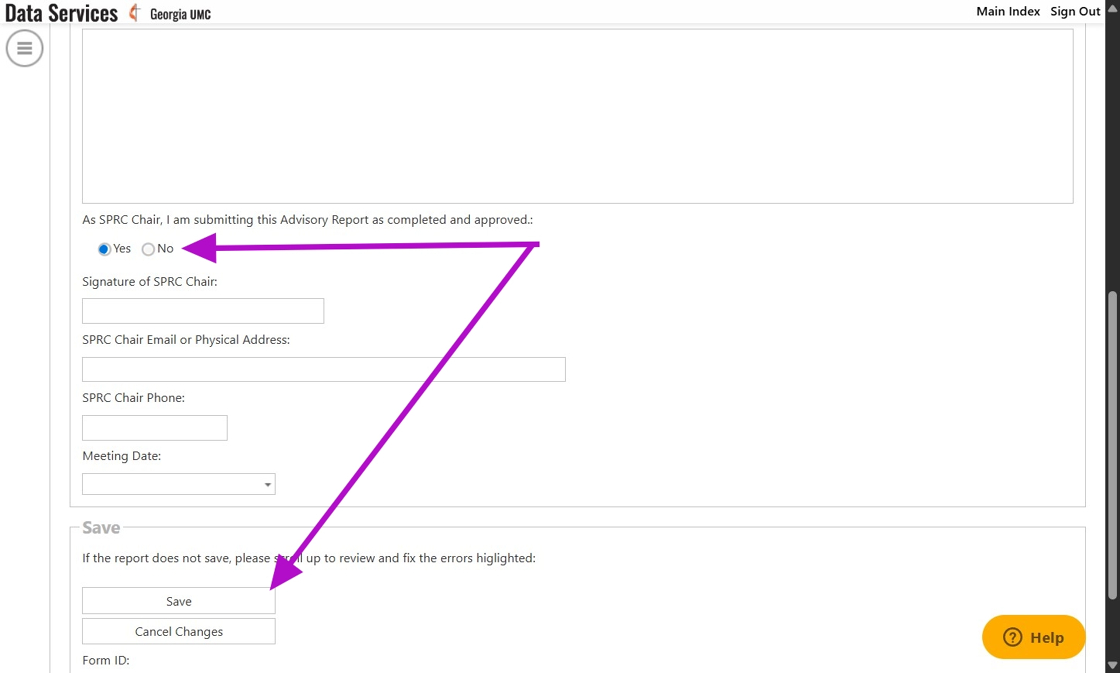
It is a good practice to periodically save your work (about every 10 minutes or so) if you choose to type out your answers in Data Services.* Saving your work does not submit your report. Submitting your report will be completed in the next step. Make sure the answer to the Save question below is marked as "No" until you are ready to submit. Then, click "Save".
*It is recommended that responses to questions that will take longer than 10 minutes to complete be typed out in a separate Word/Google Document. These answers may be copied and pasted into Data Services to prevent any lost work.
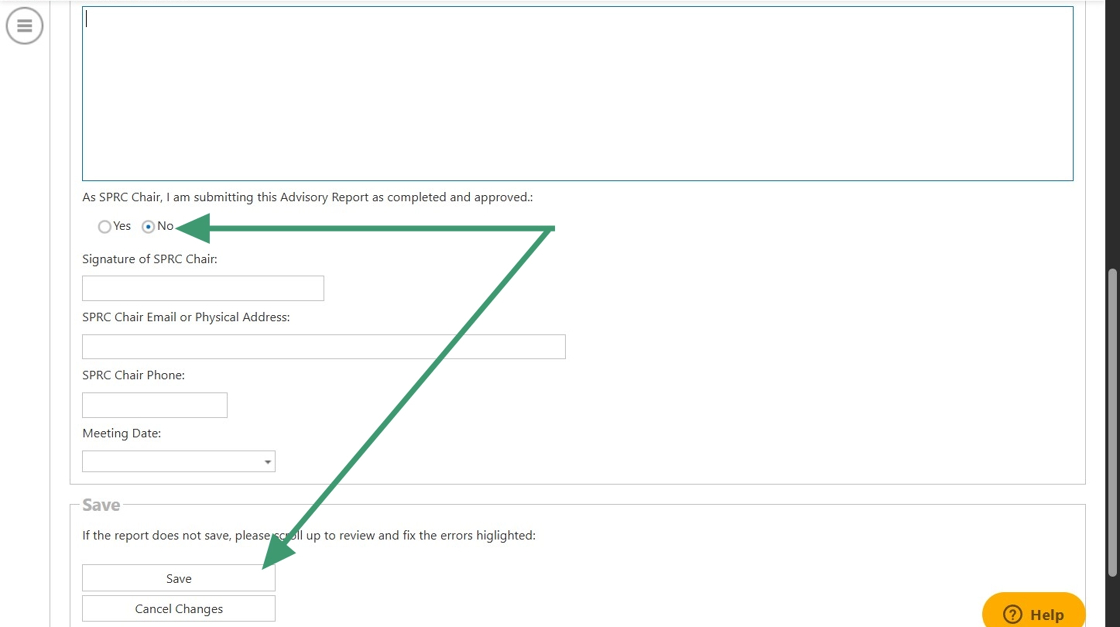
7. Now that your report is complete and you are ready to submit it, you may answer "Yes" to the save question as pictured in the example. Then, click "Save".
8. From the Advisory Reports Index, you may edit your report for up to 14 days after the report is submitted and approved. (Click the "Edit" link on the report you would like to edit; blue arrow.) You may also review any reports by clicking the "View" link on the report you would like to review. (Green arrow.)
Once you are ready to return to the main page of Data Services, Click "Main Index". From there, you may complete your Ministry Review.

9. To begin completing your Ministry Review, click "Ministry Reviews" from Main Index.

10. This is the Ministry Reviews Index. Here you may see previous reports as well as create new ones. To create a new review, click the drop down menu as pictured in the example.

11. Choose your pastor from the drop down menu.
If you have more than one pastor, it is important to note that you MUST complete a Ministry Review for each pastor appointed to your church. Once you complete the steps following this one for one of your pastors, you may come back to this screen and select a different pastor for which a Ministry Review may be completed. If you do not see your current appointments listed, please contact help@georgiaumc.org for assistance.

12. Click "New Review"

13. It is important to note that Data Services automatically logs users out of their accounts periodically when there has been no activity for 15+ minutes to keep our accounts and data secure. This may happen without warning. We understand that reports like these require time to complete and fully type out. Data Services does not register typing into these forms as activity.
It is a good practice to periodically save your work (about every 10 minutes or so) if you choose to type out your answers in Data Services.* Saving your work does not submit your review. Submitting your review will be completed in the next step. Make sure the answer to the Save question below is marked as "No" until you are ready to submit. Then, click "Save".
*It is recommended that responses to questions that will take longer than 10 minutes to complete be typed out in a separate Word/Google Document. These answers may be copied and pasted into Data Services to prevent any lost work.

14. Now that your report is complete and you are ready to submit it, you may answer "Yes" to the save question as pictured in the example. Then, click "Save".

15. From the Ministry Reviews Index, you may edit your review for up to 14 days after the review is submitted and approved. (Click the "Edit" link on the report you would like to edit; blue arrow.) You may also view any reviews by clicking the "View" link on the review you would like to view. (Green arrow.)
Once you are ready to return to the main page of Data Services, Click "Main Index".

Comments
0 comments
Please sign in to leave a comment.